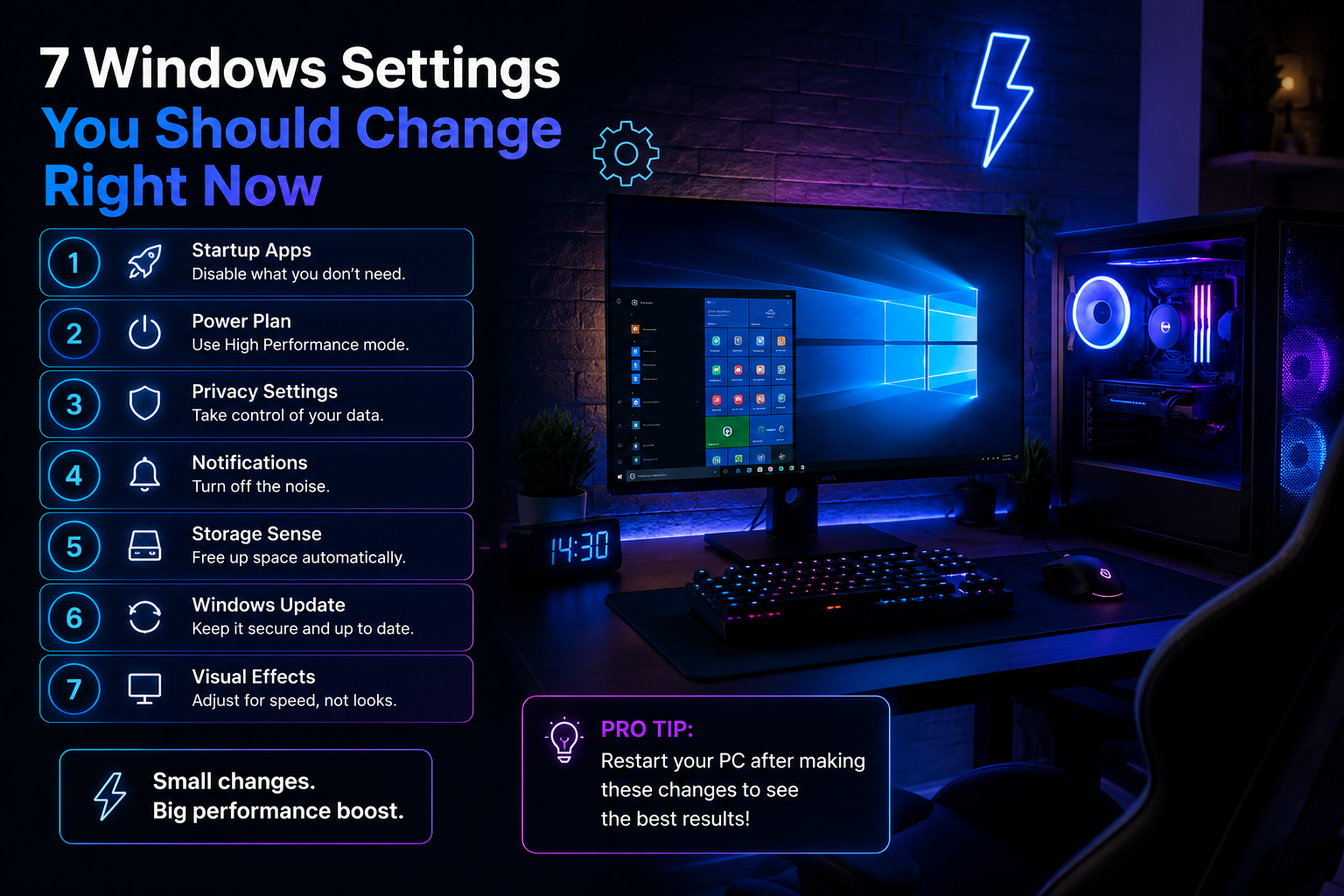

7 Windows Settings You Should Change Right Now
A slow computer does not always need new hardware. Windows often enables background applications, visual effects, notifications, and other features that consume memory and processing power.
Before buying more RAM or replacing your computer, check these seven settings.
1. Disable unnecessary startup applications
Many programs automatically launch when Windows starts. They continue running in the background even when you do not use them.
Open:
Settings → Apps → Startup
Disable applications that do not need to start automatically, such as game launchers, update assistants, chat programs, and software you rarely use.
Do not disable security software, audio drivers, graphics utilities, or programs you do not recognize.
2. Choose the appropriate power mode
Windows may limit performance to reduce energy consumption.
Open:
Settings → System → Power & battery → Power mode
For a desktop computer, select Best performance when you need maximum speed.
Laptop users should remember that this mode can increase battery consumption and heat. Balanced is usually better when working away from a charger.
3. Review privacy permissions
Some applications can access your location, camera, microphone, contacts, and other information in the background.
Open:
Settings → Privacy & security → App permissions
Review each category and disable access for applications that do not genuinely need it.
This improves privacy and may reduce unnecessary background activity.
4. Reduce distracting notifications
Constant notifications interrupt work and may cause unnecessary applications to remain active.
Open:
Settings → System → Notifications
Disable notifications from promotional applications, stores, games, and other services that do not require immediate attention.
Keep notifications enabled for important communication and security applications.
5. Enable Storage Sense
Temporary files, old updates, and items in the Recycle Bin can gradually consume a large amount of disk space.
Open:
Settings → System → Storage → Storage Sense
Enable Storage Sense and configure how frequently Windows should remove temporary files.
Before enabling automatic deletion from the Downloads folder, make sure it does not contain important documents.
6. Keep Windows and drivers updated
Updates often include security fixes, stability improvements, and compatibility changes.
Open:
Settings → Windows Update
Install important updates and restart your computer when required.
For graphics drivers, use the official NVIDIA, AMD, or Intel software. Avoid unknown driver-update applications because they may install incorrect or unsafe drivers.
7. Reduce visual effects
Animations, transparency, and shadows make Windows look smoother, but they can affect older or less powerful computers.
Search for:
Adjust the appearance and performance of Windows
Select Adjust for best performance, or manually keep only the effects you like.
A good compromise is to leave font smoothing enabled while disabling unnecessary animations and transparency.
Final thoughts
These changes will not turn an old computer into a high-end gaming system, but they can improve startup time, reduce background activity, free storage, and make Windows feel more responsive.
After applying the settings, restart your computer and use it normally for a while before deciding whether additional hardware upgrades are necessary.